Claude Cowork Complete Review: Use Cases, Features & Alternatives
Claude Cowork review with features, use cases, pricing breakdown, Reddit feedback, Windows alternatives, and open-source options explained.
Is Claude Cowork worth it? Full review of features, real-world use cases, pricing, and the best Windows & open-source alternatives like Kuse.
Claude Cowork is Anthropic’s official AI desktop agent designed to work like a real coworker on your computer.
Unlike traditional chat-based AI tools, Claude Cowork connects directly to your local file system and can take action across folders, documents, and workflows. Instead of copying files into a chat window, you describe a task, and the AI operates inside your workspace—reading files, editing documents, and producing results step by step.
At a high level, Claude Cowork represents a shift from “AI chat” to AI-powered knowledge work.
Typical things Claude Cowork can do:
However, Claude Cowork currently comes with two major constraints:
Claude’s product lineup can be confusing at first. Here’s a clear breakdown.
Claude Cowork is the only one designed to behave like a persistent digital coworker, not just a chatbot.
Claude Cowork is most powerful when work involves multiple files, long-lived context, and real decision-making, not just one-off questions. Instead of treating each prompt as an isolated interaction, it behaves more like a teammate who understands the broader project and keeps track of what has already been done.
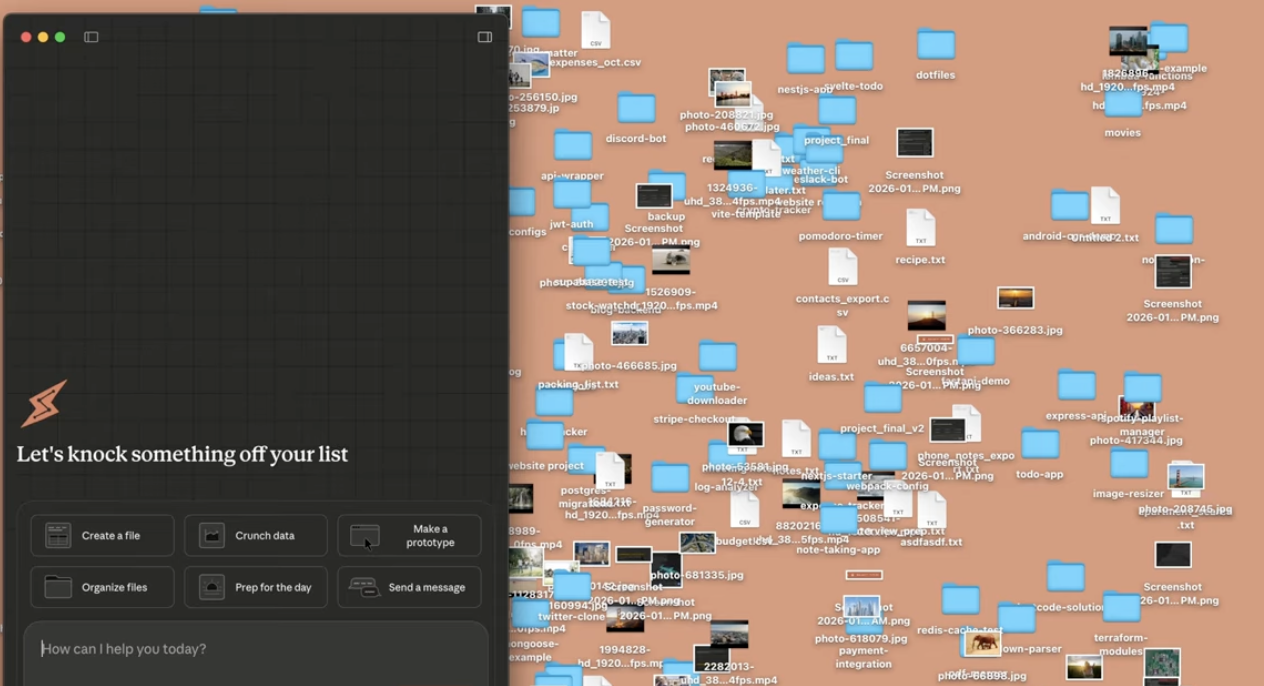
One of Claude Cowork’s defining capabilities is its ability to work directly inside a project folder without you manually opening or curating files.
For example, imagine you drop Claude Cowork into a research folder containing PDFs, notes, slide drafts, and scattered reference documents. Instead of telling it exactly which file to read, you can simply ask it to “review this project and tell me what actually matters.” Claude Cowork will scan the directory structure, identify which files are substantive versus redundant, and prioritize documents based on relevance to the task.
In practice, this means it can reconstruct the logic of a project from raw materials. It can detect which files are core sources, which are derivatives, and which are outdated. From there, it can extract key insights, synthesize themes across documents, and produce a structured output—such as a briefing, outline, or summary—without you opening a single file manually.
This shifts file-heavy work from “document handling” to “decision-making.”
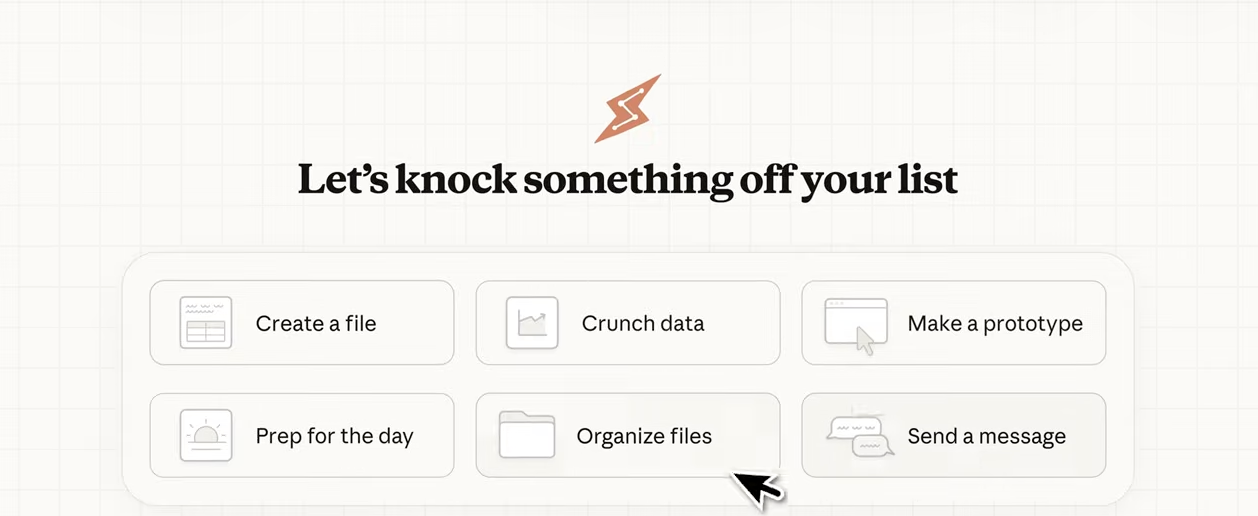
What separates Claude Cowork from traditional chat-based AI is not just file access, but how it reasons across time.
When you give Claude Cowork a goal, it doesn’t jump straight to an answer. It first interprets what success looks like, then decomposes the objective into a sequence of concrete steps. These steps are executed one after another, with intermediate results informing the next action.
For instance, if you ask Claude Cowork to “prepare an executive summary from this folder,” it will implicitly reason through a flow like:
Crucially, Claude Cowork maintains state throughout this process. It remembers what it has already read, which files it has processed, and what conclusions it has formed. This persistence is what makes it feel less like an assistant responding to commands and more like a coworker carrying context forward.
Claude Cowork is particularly well suited for knowledge work that normally requires hours of human synthesis.
In meeting-heavy environments, it can turn raw notes and transcripts into structured action plans, automatically identifying decisions, unresolved questions, and follow-up tasks. In research or strategy roles, it can analyze entire folders of source material and produce concise reports that surface patterns rather than repeating content. In operational settings, it can clean up chaotic document structures, rename files logically, and reorganize folders so that the project becomes legible again.
For managers and stakeholders, this often translates into faster alignment. Instead of forwarding a pile of documents, you can ask Claude Cowork to prepare a stakeholder-ready summary that highlights what changed, why it matters, and what decisions are needed next.
Claude Cowork’s setup process is intentionally lightweight, but it does require careful permission choices because it operates directly on your local files.
First, Claude Cowork must be installed on macOS, as it currently does not support Windows or Linux. Once installed, you’ll be prompted to grant access to specific folders on your machine. This is an important design choice: Claude Cowork does not automatically see your entire file system. You explicitly choose which directories it can operate in.
After selecting a folder, Claude Cowork treats that directory as its working context. From this point on, you don’t need to upload files or paste content into chat. You simply describe what you want to accomplish in natural language.
Before executing, Claude Cowork typically presents a brief plan outlining how it intends to approach the task. This gives you a chance to confirm that it’s operating in the right direction, especially for complex or sensitive workflows. Once approved, it proceeds step by step—reading files, extracting information, and generating outputs inside the same workspace.
If you give Claude Cowork the instruction:
“Read all PDFs in this folder, extract key findings, and generate a 2-page executive summary.”
It will first scan the folder to identify which PDFs are relevant. It then reads those documents, extracts recurring themes and important data points, and synthesizes them into a concise narrative. The final output is written as a polished document, suitable for sharing directly with decision-makers.
At no point do you need to open individual files or manually guide the process. You supervise the goal, not the mechanics.
If you’re on Windows, Claude Cowork is not available. This is where alternatives matter.
Kuse is a web-based AI workspace designed to replicate—and extend—the Claude Cowork flow on Windows, macOS, and any browser.
Instead of connecting AI to your local folders, Kuse builds a persistent cloud-based knowledge base where AI can reason across your files.
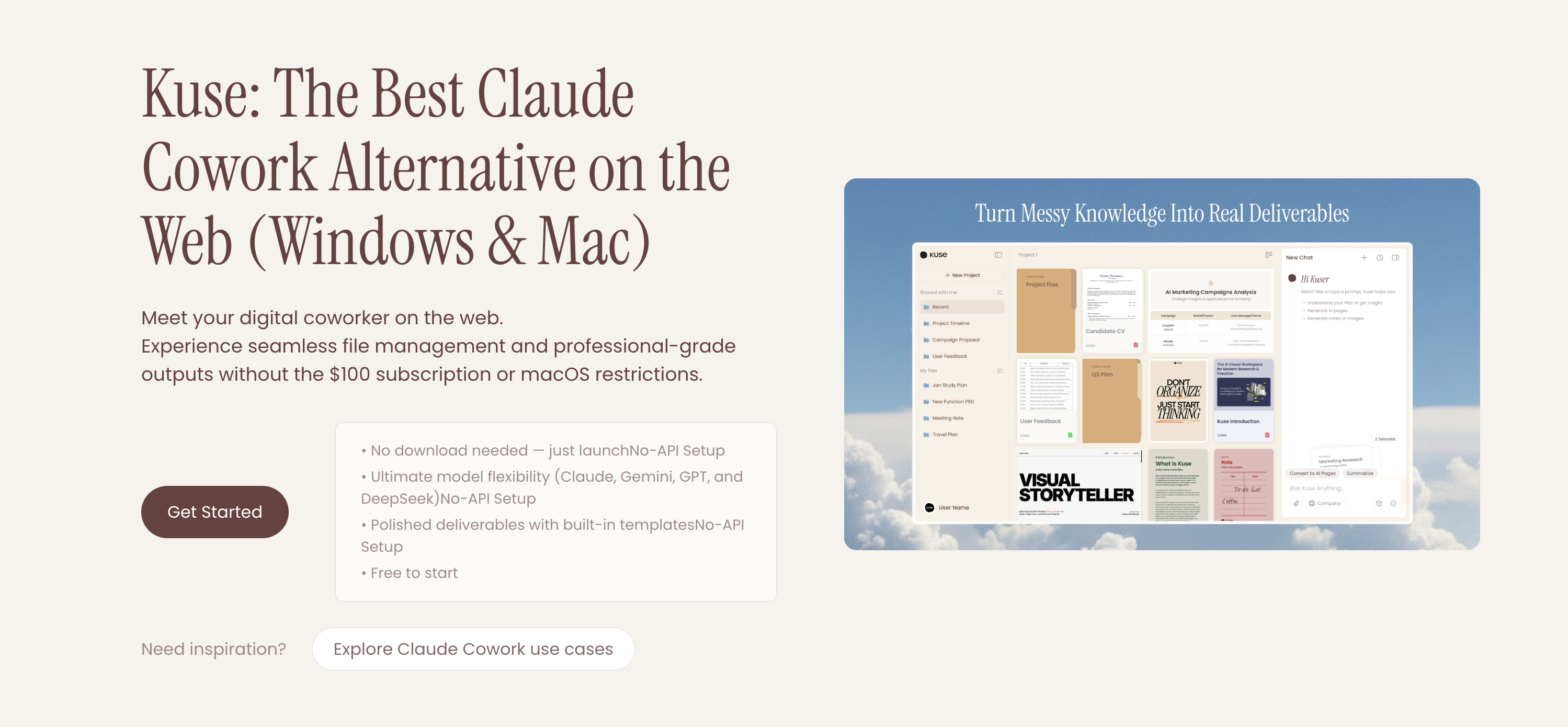
Where Kuse goes further:
For users who want local-first execution, privacy, and full control, Kuse also offers Kuse Cowork, an open-source desktop AI cowork agent.
Claude Cowork introduced the idea—but:
Kuse Cowork takes the same direction further.
Claude Cowork represents a powerful shift toward AI-driven knowledge work, moving beyond chat into real execution. But its limitations—macOS-only, closed ecosystem, high cost—leave many users searching for alternatives.
If you’re on Windows or want more flexibility:
Together, they show where AI coworkers are headed: open, flexible, and built for how work actually gets done.
Claude Cowork review with features, use cases, pricing breakdown, Reddit feedback, Windows alternatives, and open-source options explained.
Is Claude Cowork worth it? Full review of features, real-world use cases, pricing, and the best Windows & open-source alternatives like Kuse.
Compare Claude Cowork vs Kuse in 2026: access, file safety, outputs, collaboration, and pricing gates—plus real workflows for reports, spreadsheets, and presentations.
Discover 8 real-world Claude Cowork use cases—from file organization to research synthesis and spreadsheet automation. See how agentic AI actually works in practice, plus when alternatives make sense.