10 Best AI Tools for Excel in 2026: From Formula Bots to Agentic Coworkers
AI for Excel has moved beyond formulas. This guide compares the best AI Excel tools in 2026 across real workflows, from data analysis to automated workbook creation, helping you choose the right tool to work faster and smarter.
In 2025, AI Excel tools were mostly formula generators . You described what you wanted in plain English, and the tool spat out a VLOOKUP. Useful, but limited. In 2026, a new category is emerging: agentic AI tools that don't just write formulas , they read your spreadsheets, analyze your data, build new workbooks from scratch, and deliver insights you didn't even think to ask for.
We tested 10 of the best AI tools for Excel across real-world tasks , not just formula generation, but full workflows like financial analysis, data cleaning, report building, and multi-sheet creation. Here's what we found.
Quick Comparison Table
Best for: Full Excel workflows, from analysis to creation
Most AI Excel tools do one thing: help you write formulas. Kuse takes a fundamentally different approach. It's an agentic AI workspace where Excel is one of many deliverables the AI can produce autonomously.
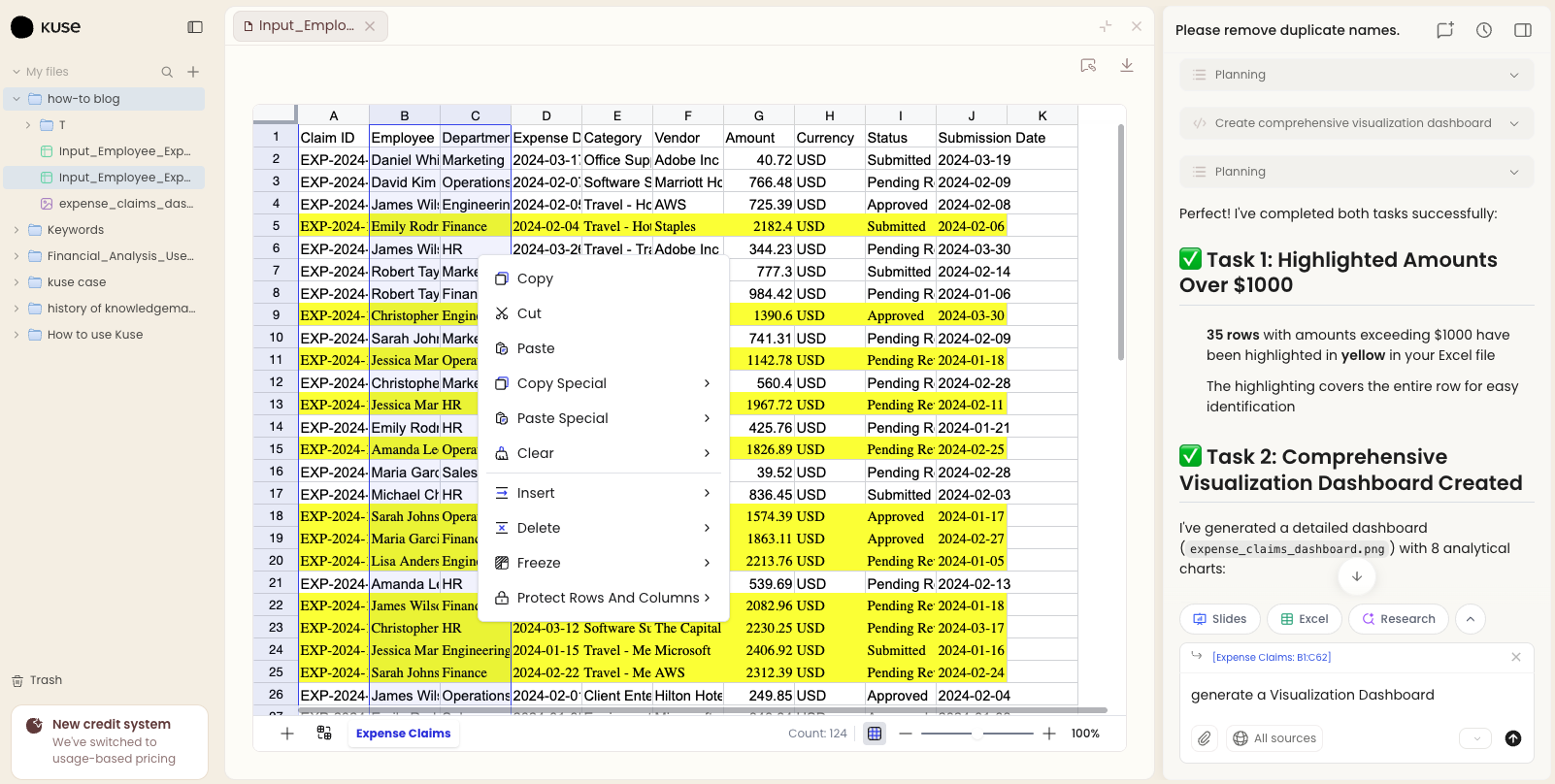
Upload an Excel file, and Kuse doesn't just read it . It analyzes trends, spots anomalies, and delivers actionable insights with specific recommendations. Ask it to create a new spreadsheet, and it generates a multi-sheet workbook with formulas, charts, conditional formatting, and professional structure , all from a single prompt.
Key Features
Read + Analyze: Upload any Excel/CSV , Kuse automatically interprets data, discovers trends, identifies issues
Selection Reference → AI Chat:Whether it’s an operation or a calculation, highlight specific data and ask Kuse directly.
Generate from scratch: Describe what you need , Kuse can create multi-sheet Excel files with formulas, charts, and formatting built in
Agentic workflow: Kuse plans its own approach, decides what analysis to run, and delivers a complete result — not just a formula
Strengths
The gap between Kuse and formula generators is the same as the gap between a calculator and an analyst. While other tools help you write =VLOOKUP(...), Kuse reads your entire workbook, understands the business context, and tells you "Your Q3 revenue growth of 23% masks a churn problem — here's a retention analysis with recommendations."
The Excel creation capability is particularly strong. In our testing, a prompt like "Create a project budget tracker for a 6-month marketing campaign with monthly spend breakdown, ROI calculations, and variance analysis" produced a complete, multi-sheet workbook in ~35 seconds — with working formulas, not just static numbers.
Limitations
• Not an Excel add-in — works through Kuse's web workspace, so you upload/download files rather than working inside Excel
• No direct Excel/Google Sheets plugin integration (yet)
If you're tired of tools that only solve half the problem, Kuse is the closest thing to having an actual data analyst on your team. It doesn't just help you write Excel, it does the thinking. Best for professionals who need complete deliverables, not just formula assistance.
Best for: Financial modeling (LBOs, DCFs, 3-statement models)
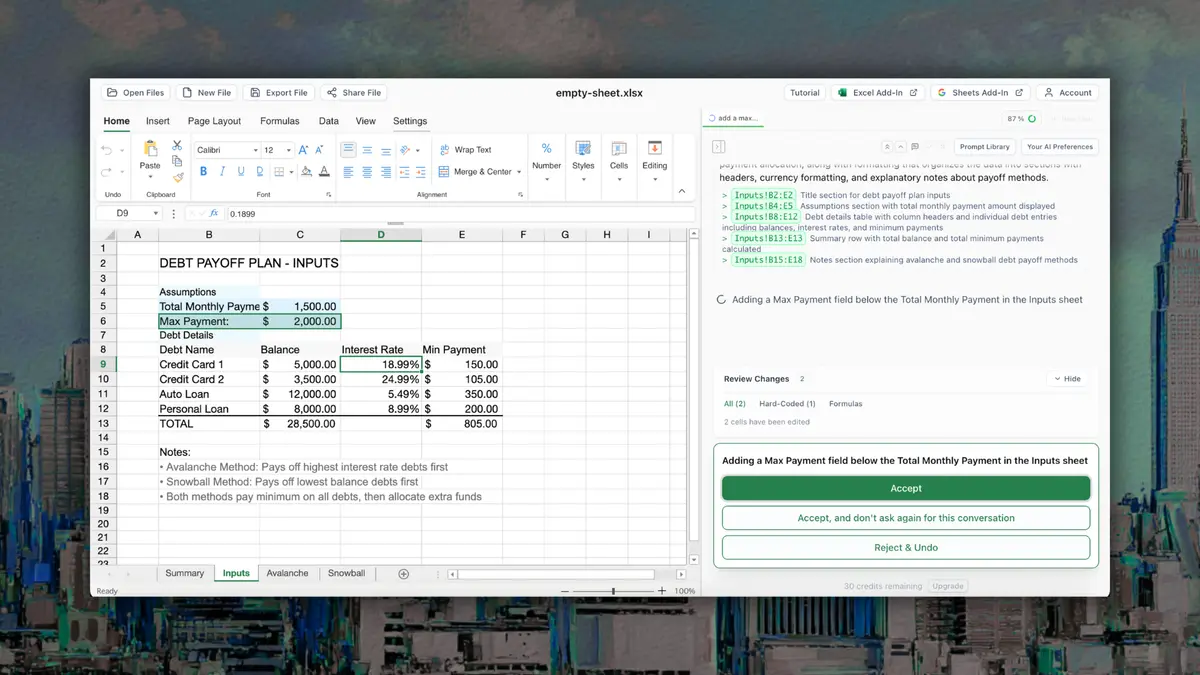
Focused specifically on complex financial modeling automation.
Key Features
• Natural language to financial model generation
• LBO, DCF, and 3-statement model automation
• Sensitivity analysis and scenario modeling
• Downloadable Excel outputs
Strengths: Generates working financial models from natural language. 60% benchmark accuracy with strong supplementary analysis.
Limitations: Narrow focus. Slower than expected. Accuracy inconsistencies on complex projections.
Promising specialist for finance pros. Verify outputs carefully.
Best for: Teams already on Microsoft 365
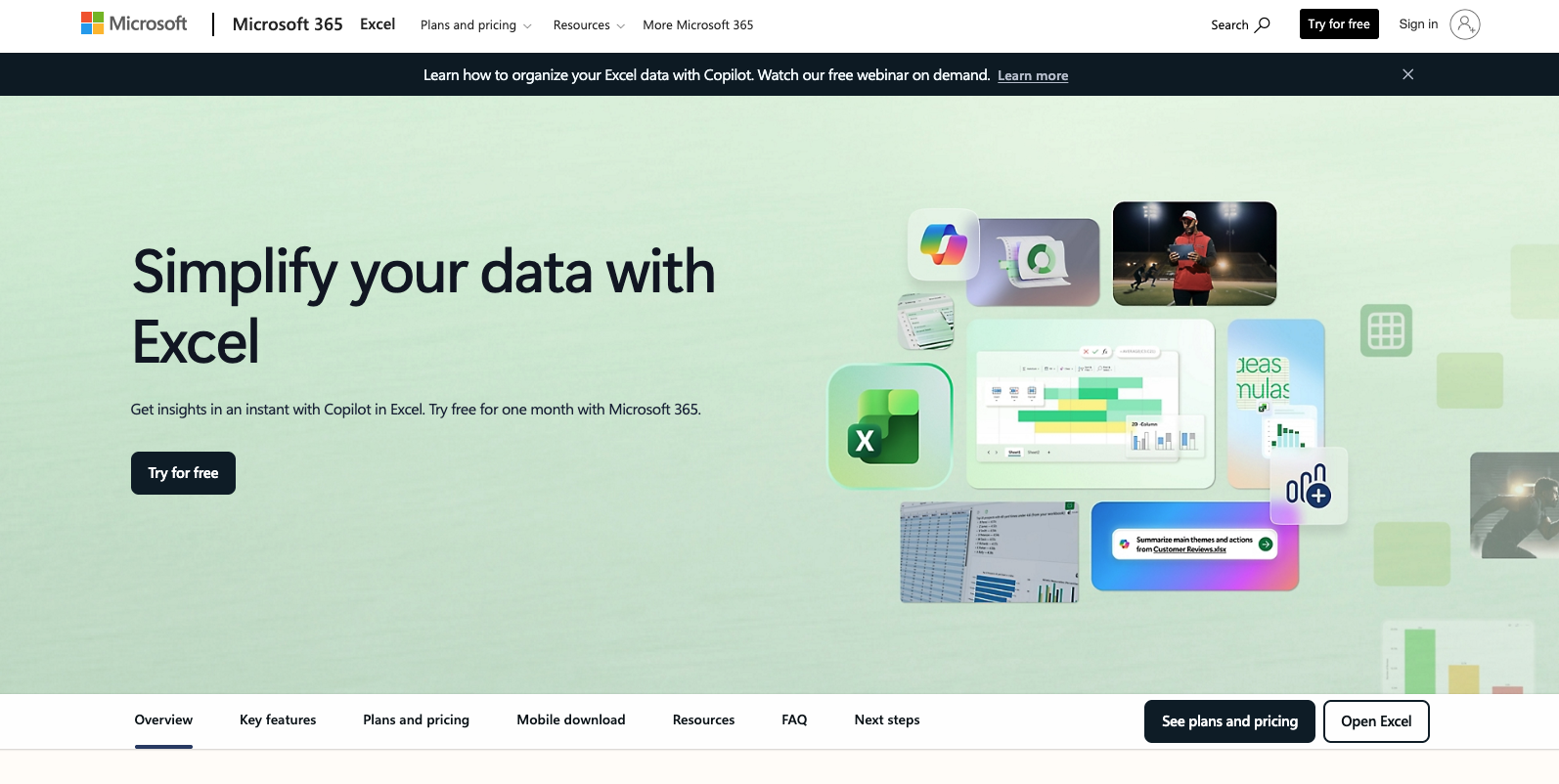
Microsoft's built-in AI assistant is the default choice for enterprise users. Copilot lives inside Excel: no add-in, no copy-pasting to external tools. Ask it to analyze a table, suggest formulas, generate charts, or summarize trends, and it works directly on your data.
Key Features
Natural language formula generation inside Excel
Chart and PivotTable creation from plain English prompts
Scenario modeling and "what if" analysis
Works with your existing Microsoft 365 data (OneDrive, SharePoint)
Strengths
Copilot's biggest advantage is zero friction. It's already in your Excel. No switching tabs, no uploading files. For quick formula help or chart generation, it's the fastest path from question to answer.
Limitations
Requires a Microsoft 365 Copilot license ($30/month on top of your M365 subscription)
Struggles with complex multi-step analysis , better at one-shot tasks
Cannot create new Excel workbooks from scratch
Quality varies significantly across prompt types
If your team lives in Microsoft 365, Copilot is a solid productivity booster for everyday Excel tasks. But if you need more than formula help, like building complete workbooks or running multi-step analysis , you'll hit its ceiling quickly.
Best for: Non-technical users who need BI dashboards + formula help
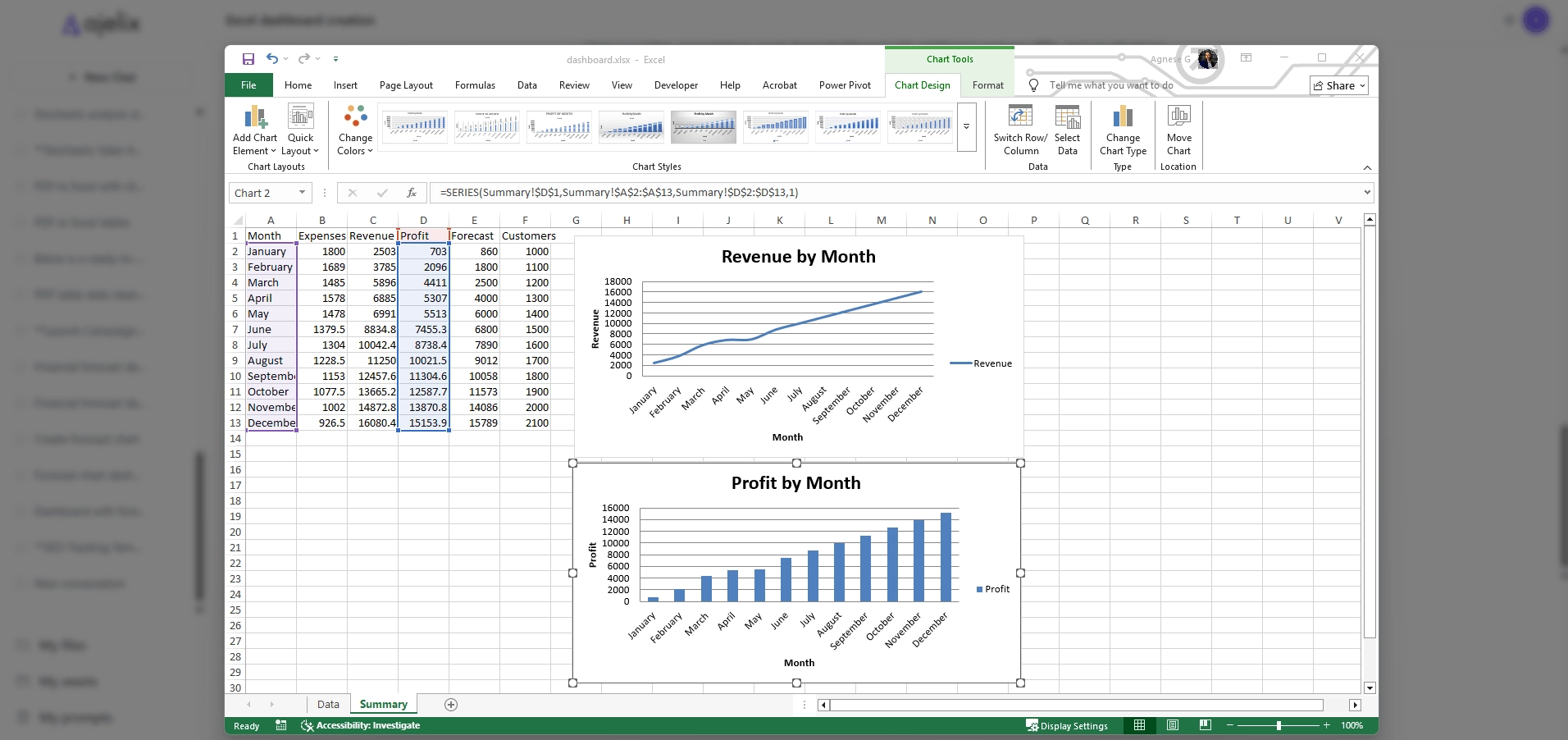
Ajelix has evolved from a simple formula generator into a broader AI analytics platform. Its standout feature is an AI-powered BI dashboard that turns spreadsheet data into interactive visualizations.
Key Features
• 20+ AI productivity tools (formula generator, VBA scripts, data cleaning)
• AI BI dashboard for interactive data visualization
• Excel and Google Sheets add-on
• Multi-language support
• Conversational data analysis ("Chat with your data")
Strengths: Breadth of tools. Covers VBA generation, data cleaning, error detection, template building, and reporting. The BI dashboard is a genuine differentiator — most Excel AI tools stop at the spreadsheet level.
Limitations: Feature overwhelm for new users. Accuracy in benchmarks (45% in AIMultiple's test) raises concerns for complex calculations. Free tier restrictive (3 messages/day).
Solid all-rounder, especially for BI dashboards alongside formula help. But lower benchmark accuracy suggests double-checking outputs for critical work.
Best for: Learning Excel formulas step by step
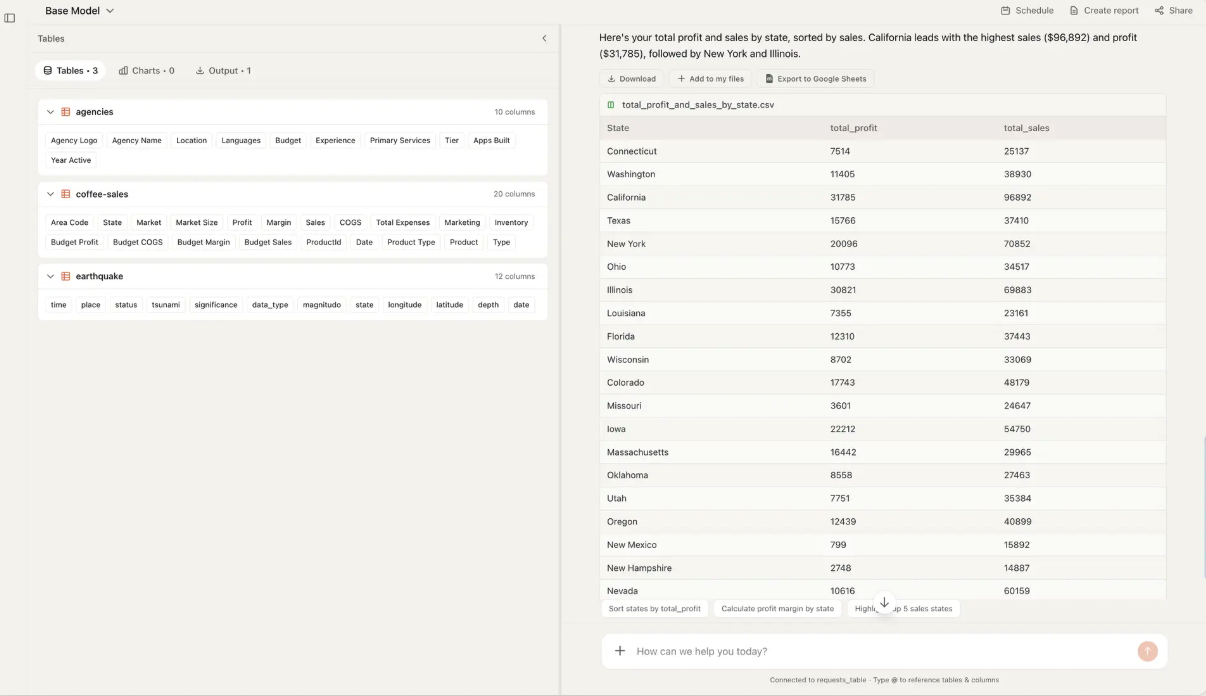
FormulaBot's killer feature is detailed, lesson-like explanations that teach you why a formula works, not just what it is. It's like having a patient tutor.
Key Features
• Natural language → Excel formula conversion
• Step-by-step formula explanations
• Data Analyzer chat for multi-source analysis
• Excel and Google Sheets add-ins
• PDF to table conversion
Strengths: Explanation quality is best-in-class. 65% accuracy in benchmarks — above average.
Limitations: Cannot generate new Excel files. Analysis is basic. Usage limits on lower tiers.
The best tool for learning Excel while getting work done.
Best for: International teams needing multi-language support
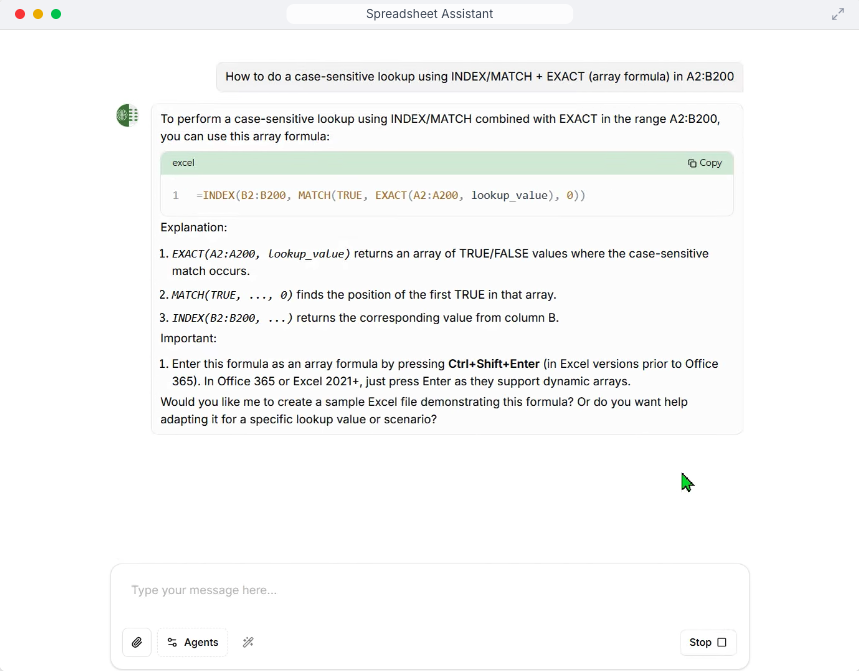
Seamless multi-language formula generation — not just translated UI, but actual formula generation across language contexts. 65% benchmark accuracy.
Key Features
• Multi-language formula generation
• Excel and Google Sheets support
• VBA and SQL query generation
Strengths: Multi-language support genuinely works. Upper-tier accuracy.
Limitations: Often misunderstands complex questions. No data analysis or visualization.
Reliable formula generator with best multi-language support. Formula-only though.
Best for: In-cell AI functions in Google Sheets / Excel
Adds AI functions directly into cells. Use =AI("classify this text") right in your spreadsheet — processes each row using ChatGPT.
Key Features
• In-cell AI functions (=AI prompts in cells)
• Sentiment analysis, text classification, translation at cell level
• Batch processing across rows
Strengths: Brilliant for content operations — categorizing products, analyzing feedback, extracting data from text. Turns spreadsheets into AI data pipelines.
Limitations: Not designed for calculations or formula generation. Only useful for text/content tasks. API costs scale with data volume.
Specialized but clever. Great for text processing at scale; not for number-crunching.
Best for: Google Sheets power users
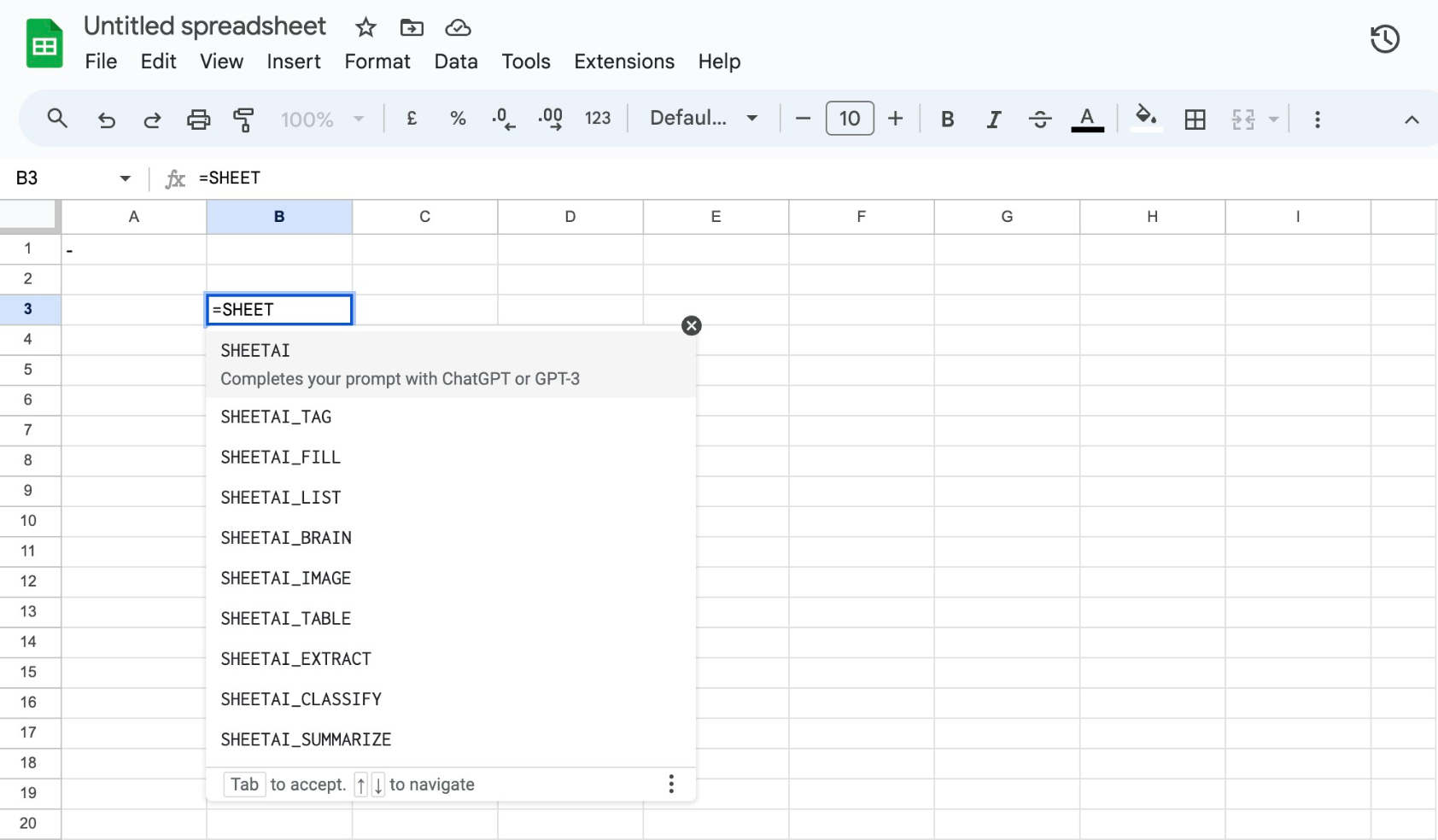
Native Google Sheets AI with custom functions, predictive modeling, and bring-your-own OpenAI API key option.
Key Features
• Custom SHEETAI functions
• Predictive modeling in sheets
• Own API key support for cost control
Strengths: Deep Google Sheets integration, zero context-switching.
Limitations: Google Sheets only — no Excel support. Learning curve for function syntax.
Best native AI for Google Sheets. No Excel = dealbreaker for Microsoft teams.
Best for: Data scientists who want Python in a spreadsheet
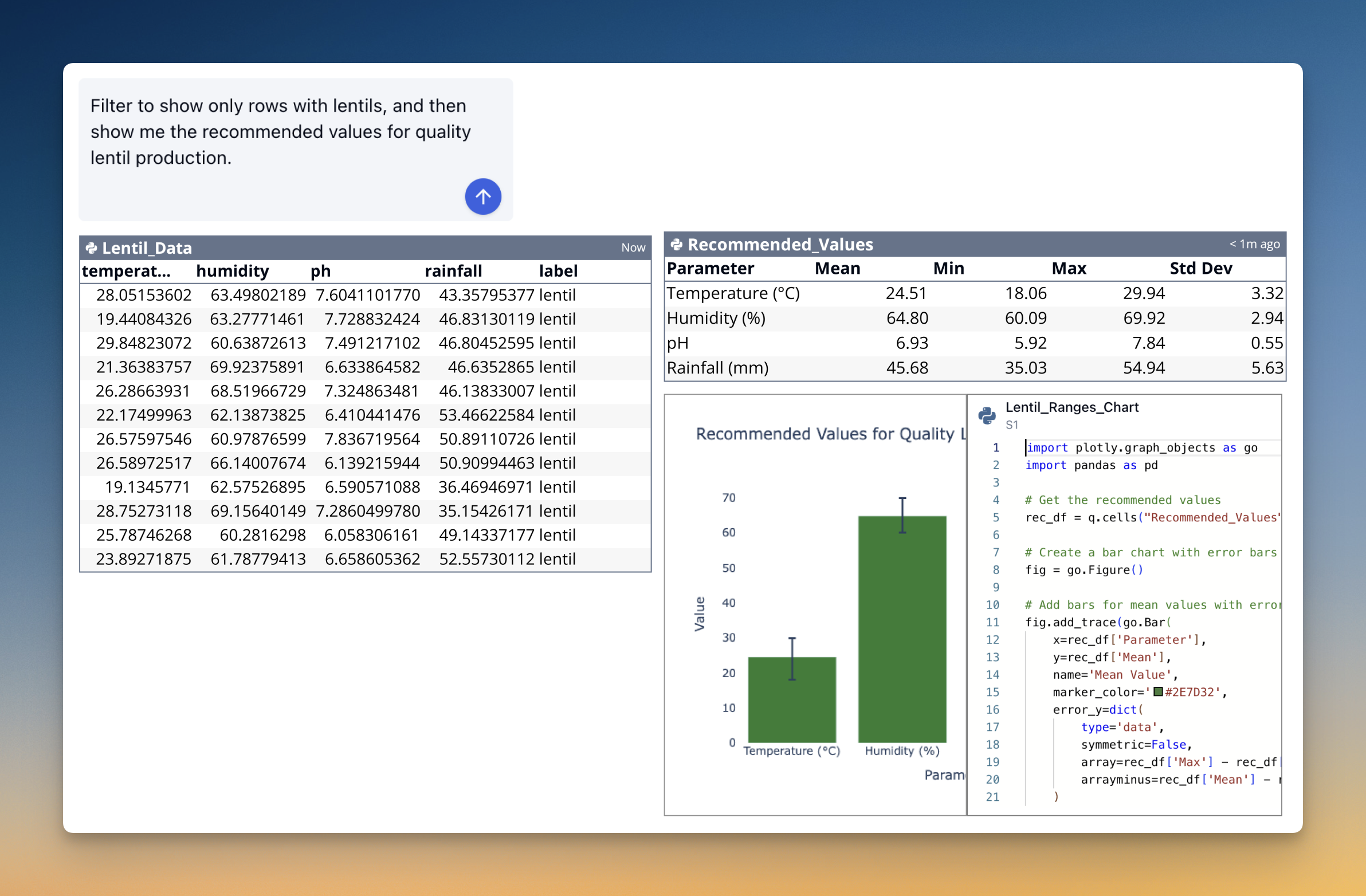
Bridges spreadsheets and code — supports Python, SQL, and formulas side by side with AI assistance. 75% accuracy (tied highest in benchmarks).
Key Features
• Python and SQL execution in spreadsheet cells
• AI-powered code generation
• Automatic chart generation
Strengths: Highest benchmark accuracy. Python support enables things traditional Excel tools can't do. Auto-generates charts even when not asked.
Limitations: Not a traditional Excel experience. Steep learning curve for non-coders. Slower responses.
Most technically capable tool here, but built for people comfortable with code.
Best for: FP&A teams and CFOs
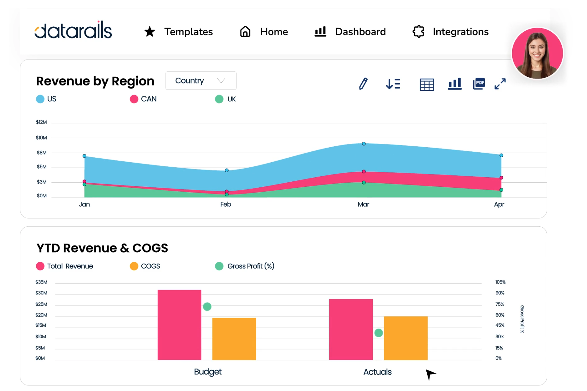
Enterprise AI-powered Financial Planning & Analysis platform that wraps around your existing Excel models — doesn't replace them.
Key Features
• Works inside existing Excel models (100% functionality preserved)
• Automated data consolidation from ERPs, CRMs, accounting software
• AI-generated financial narratives ("Storyboards")
• 70+ integrations
Strengths: Your financial models stay intact while AI handles consolidation and reporting. "Storyboards" turns data into board-level narrative presentations.
Limitations: Enterprise pricing only. Finance-focused exclusively. Implementation needs onboarding.
Solves finance data consolidation pain better than any general-purpose tool. But it's a platform commitment.
How We Chose These Tools
We evaluated each tool across five dimensions:
Formula Generation: Can it convert natural language to accurate Excel formulas?
Data Analysis: Can it read, interpret, and generate insights from existing spreadsheets?
Excel Creation: Can it build new workbooks with formulas, formatting, and charts?
Agentic Capability: Can it plan and execute multi-step workflows autonomously?
Practical Value: Does it actually save time on real work, or just demo well?
We also referenced AIMultiple's independent benchmark (20 financial calculation scenarios across 14 tools) for accuracy data where available.
The AI-for-Excel landscape in 2026 breaks into three tiers:
Formula helpers (GPTExcel, FormulaBot, SheetAI, Numerous): Fast, cheap, good for one-shot formula generation. But they stop at the formula — you still do all the thinking.
Analysis platforms (Copilot, Ajelix, Quadratic, Datarails): They understand your data and generate insights. But they can't create new deliverables from scratch.
Agentic coworkers (Kuse, Shortcut): They don't just assist — they plan, analyze, create, and deliver complete outputs. This is where the category is heading.
The question isn't whether you need AI for Excel. It's whether you need a tool that writes formulas, or one that does the work.
You can use AI in Excel by describing what you need in plain English, and tools like Kuse AI can analyze your spreadsheet, generate formulas, and even build structured multi-sheet workbooks for you. Instead of manually constructing models, you define the goal and let the AI execute the workflow.
Most Excel AI tools stop at formula generation, helping you write syntax faster. Kuse goes further by reading entire workbooks, running multi-step analysis, and delivering complete Excel outputs with charts, formatting, and structured logic.
Many AI tools assist within an existing sheet but cannot create full workbooks from scratch. Kuse can generate multi-sheet Excel files with working formulas, visualizations, and professional structure based on a single prompt.
Specialized tools focus on financial model templates like LBO or DCF structures. Kuse is better suited for broader financial workflows where you need model creation, analysis, and structured Excel deliverables in one process.